Vega
Vega and Vega-Lite are open-source, declarative language visualization tools that you can use to create custom data visualizations with your SmartObserve data and Vega data. These tools are ideal for advanced users comfortable with writing SmartObserve queries directly. Enable the vis_type_vega plugin in your smartobserve_dashboards.yml file to write your Vega specifications in either JSON or HJSON format or to specify one or more SmartObserve queries in your Vega specification. By default, the plugin is set to true.
Creating Vega visualizations from multiple data sources
Introduced 2.13
Before proceeding, ensure that the following configuration settings are enabled in the config/smartobserve_dasboards.yaml file. For configuration details, refer to the vis_type_vega README.
data_source.enabled: true
vis_type_vega.enabled: true
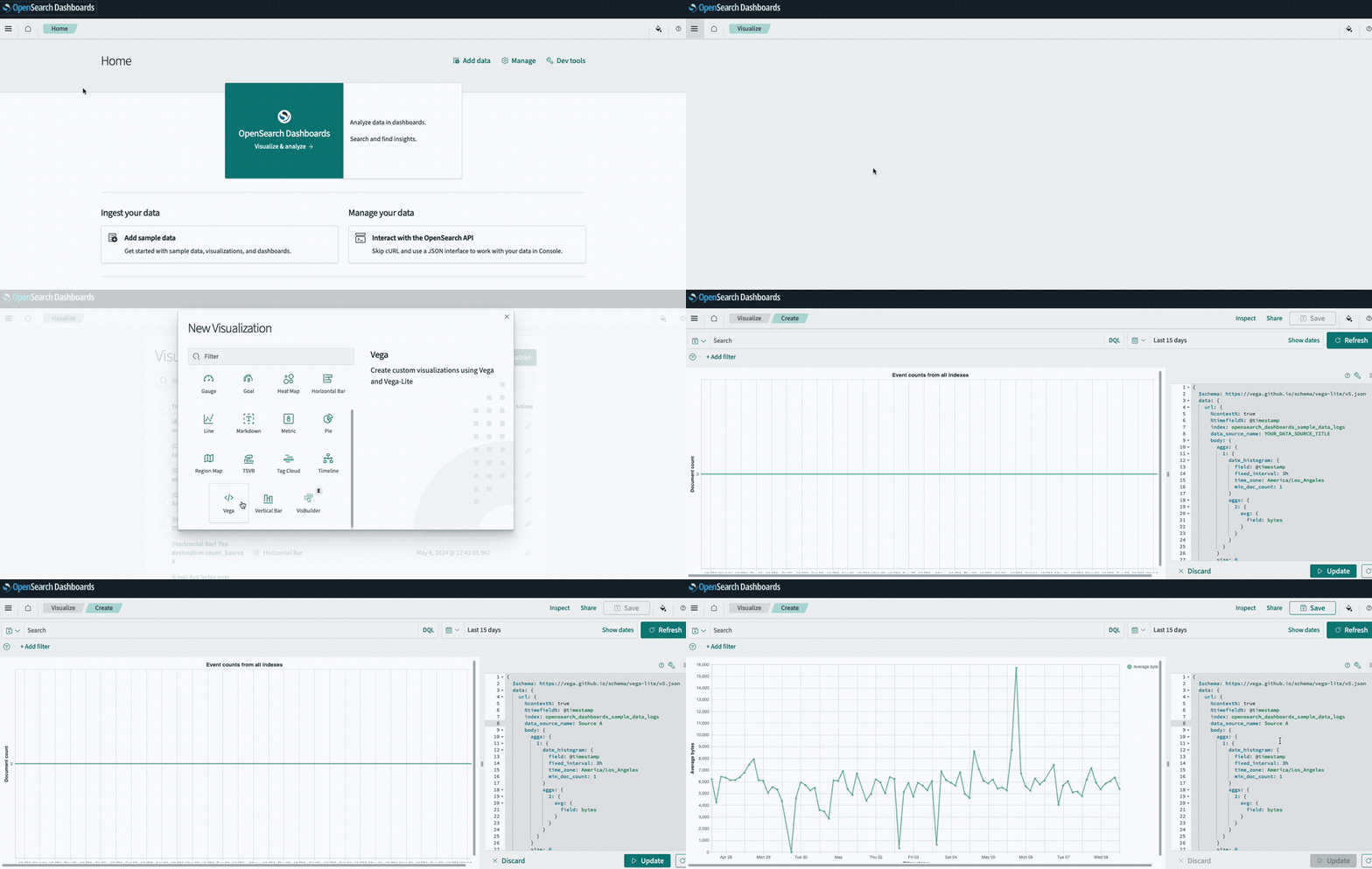
After you have configured multiple data sources in SmartObserve Dashboards, you can use Vega to query those data sources. The following GIF shows the process of creating Vega visualizations in SmartObserve Dashboards.
Step 1: Set up and connect data sources
Open SmartObserve Dashboards and follow these steps:
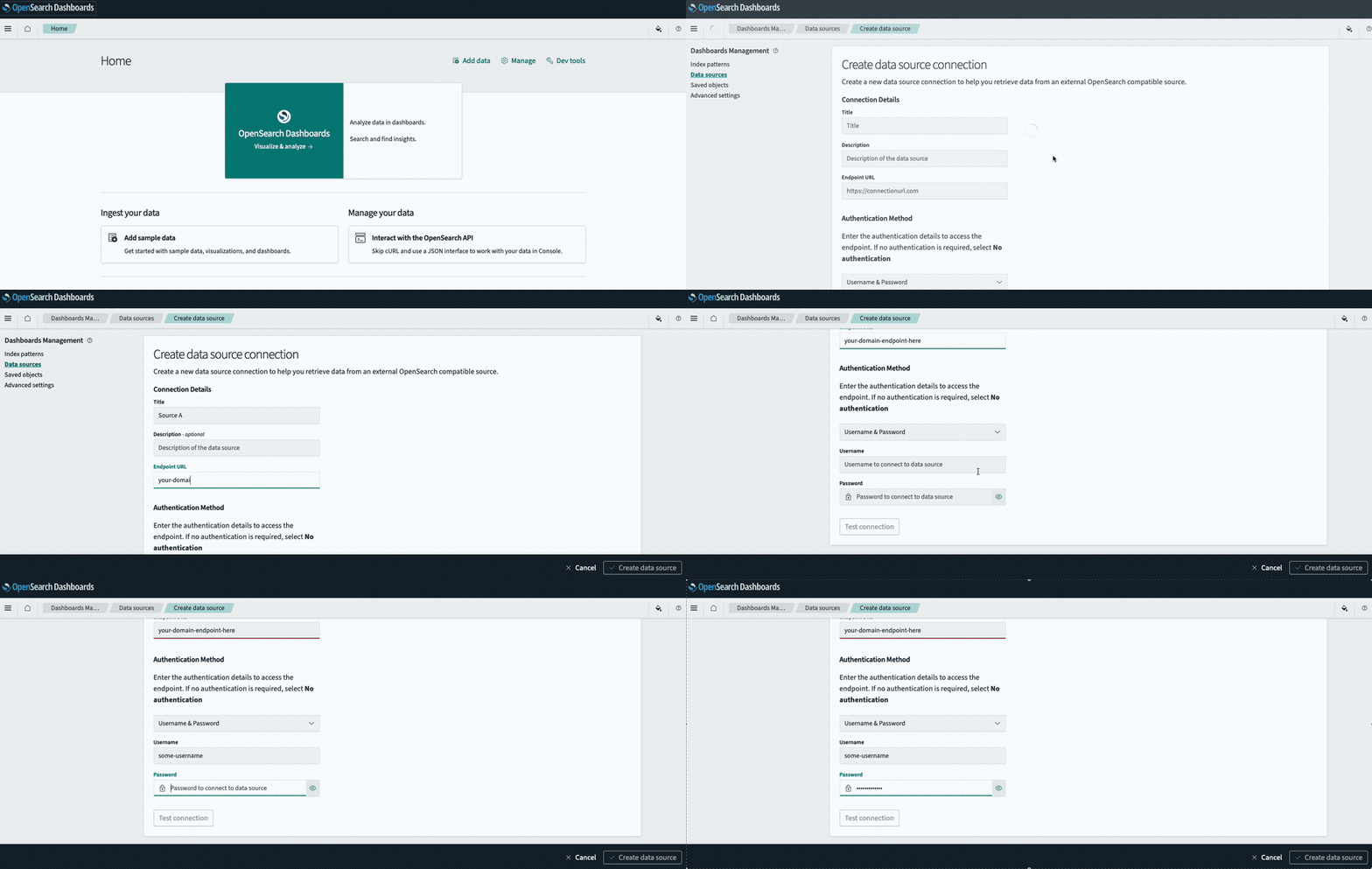
- Select Dashboards Management from the menu on the left.
- Select Data sources and then select the Create data source button.
- On the Create data source page, enter the connection details and endpoint URL, as shown in the following GIF.
- On the Home page, select Add sample data. Under Data source, select your newly created data source, and then select the Add data button for the Sample web logs dataset.
The following GIF shows the steps required for setting up and connecting a data source.
Step 2: Create the visualization
- From the menu on the left, select Visualize.
- On the Visualizations page, select Create Visualization and then select Vega in the pop-up window.
Step 3: Add the Vega specification
By default, queries use data from the local cluster. You can assign individual data_source_name values to each SmartObserve query in your Vega specification. This allows you to query multiple indexes across different data sources in a single visualization.
- Verify that the data source you created is specified under
data_source_name. Alternatively, in your Vega specification, add thedata_source_namefield under theurlproperty to target a specific data source by name. - Copy the following Vega specification and then select the Update button in the lower-right corner. The visualization should appear.
{
  $schema: https://vega.github.io/schema/vega-lite/v5.json
  data: {
    url: {
      %context%: true
      %timefield%: @timestamp
      index: smartobserve_dashboards_sample_data_logs
      data_source_name: YOUR_DATA_SOURCE_TITLE
      body: {
        aggs: {
          1: {
            date_histogram: {
              field: @timestamp
              fixed_interval: 3h
              time_zone: America/Los_Angeles
              min_doc_count: 1
            }
            aggs: {
              2: {
                avg: {
                  field: bytes
                }
              }
            }
          }
        }
        size: 0
      }
    }
    format: {
      property: aggregations.1.buckets
    }
  }
  transform: [
    {
      calculate: datum.key
      as: timestamp
    }
    {
      calculate: datum[2].value
      as: bytes
    }
  ]
  layer: [
    {
      mark: {
        type: line
      }
    }
    {
      mark: {
        type: circle
        tooltip: true
      }
    }
  ]
  encoding: {
    x: {
      field: timestamp
      type: temporal
      axis: {
        title: @timestamp
      }
    }
    y: {
      field: bytes
      type: quantitative
      axis: {
        title: Average bytes
      }
    }
    color: {
      datum: Average bytes
      type: nominal
    }
  }
}
Additional resources
The following resources provide additional information about Vega visualizations in SmartObserve Dashboards: